Template Strings and Transforms
Many areas of LimaCharlie support template strings and transforms.
A template string allows you to customize the value of a configuration based on the context. For example to adjust the Detection Name a D&R rule to include a value from the detection itself. Transforms can also be used to select, modify, or remove fields upon data ingestion from an Adapter.
A transform allows you to change the shape of JSON data in flight to suit better your usage. This can mean moving, renaming, removing and adding fields in JSON. For example, it can allow you to create an Output that works with DNS_REQUEST events, but outputs only specific fields from the event.
Template Strings
Template strings in LimaCharlie use the Go text/template format. Hashicorp's Go template syntax tutorial is also a useful reference.
The most basic example for a D&R rule customizing the detection name looks like this:
Template strings also support some LimaCharlie-specific functions:
token: applies an MD5 hashing function on the value provided.anon: applies an MD5 hashing function on a secret seed value, plus the value provided.json: marshals the input into a JSON string representation.prettyjson: same asjsonbut with indentation and newlines.parsetime: parse a time format to another.split: split a string based on a seperator param.join: join a list into a string joined by another string.replace: replace all string into the other.base: return the file name in a file path.dir: return the base directory path from a file path.
The token and anon functions can be used to partially anonymize data anywhere a template string is supported, for example:
Other examples:
Full Data: {{prettyjson .event.OBJECT }}Original time:{{parsetime "{\"from\":\"2006/01/02 15:04:05\", \"to\":\"2006-01-02 15:04:05 MST\"}" .event.timestamp}}Packages: {{join "," .event.PACKAGES}}
Template Strings and Adapter Transforms
Template strings can also be used with in conjunction the client_options.mapping.transform option in Adapter configuration. These allow you to modify data prior to ingestion, having control over what fields get ingested and resulting field names.
The following options are available in Adapter configurations:
+to add a field-to remove a field
Both support template strings, meaning you can add/remove values from the JSON data to replace/supplement other fields.
Additive vs Replacement Mode
A transform operates in one of two modes:
- Replacement mode (default): when no keys in the transform are prefixed with
+or-, the original event is discarded and the output is built from scratch using only the keys you defined. This is the same behavior described in the Transforms section further down. - Additive mode: as soon as any key in the transform is prefixed with
+or-, the entire transform switches to additive mode. The original event is preserved as the base, and the transform's keys add to, modify, or remove fields from it.
Mixing prefixed and non-prefixed keys in the same transform is allowed: the presence of even a single +/- key flips the whole map to additive mode, and the non-prefixed keys still take effect (replacing the values at those paths). This is usually what you want when augmenting an event, but it's important to know if you ever expect a non-prefixed key to mean "rebuild the event from this only".
Example: Renaming and Adding Fields
If we had the following data:
And we wanted to rename the d value to c on ingestion, remove the d value, and add a field called hostname, we could use the following configuration:
...
   client_options:
     mapping:
       transform:
         +c : '{{ .webster.d }}',
         -d: nil,
         +hostname : '{{ "my-computer" }}',
The resulting event to be ingested would be:
Example: Parsing a Stringified JSON Field in Place
A common case with adapters (especially log sources like Parquet, Teleport, or audit logs) is an event that contains a field whose value is a JSON-encoded string rather than a nested object. Without parsing, that field will arrive in LimaCharlie as an opaque string and will not be queryable as structured data.
Combining additive mode with the @parsejson modifier lets you decode that string in place without rewriting the rest of the event. For example, given an event like:
{
  "ts": "2026-01-15 12:00:00",
  "user": "alice",
  "event_data": "{\"action\":\"login\",\"src\":\"10.0.0.5\"}"
}
The following adapter configuration replaces event_data with the decoded object while leaving every other field untouched:
If you want to keep the raw string and add the parsed copy alongside it, use a different output key:
Both forms stay in additive mode (because the key is prefixed with +), so all the surrounding fields in the event are preserved.
Transforms
With Transforms, you specify a JSON object that describes the transformation.
This object is in the shape of the final JSON you would like to transform to.
Key names are the literal key names in the output. Values support one of 3 types:
- Template Strings, as described above. In this case, the template string will be generated and placed at the same place as the key in the transform object.
- A
gjsonselector. See the gjson syntax reference for the selector syntax. It makes it possible to select subsets of input object and map it within the resulting object as defined by the transform. - Other JSON objects which will be present in the output.
Let's look at an example, let's say this is the Input to our transform:
{
    "event": {
        "EVENT": {
            "EventData": {
                "AuthenticationPackageName": "NTLM",
                "FailureReason":             "%%2313",
                "IpAddress":                 "34.64.101.177",
                "IpPort":                    "0",
                "KeyLength":                 "0",
                "LmPackageName":             "-",
                "LogonProcessName":          "NtLmSsp",
                "LogonType":                 "3",
                "ProcessId":                 "0x0",
                "ProcessName":               "-",
                "Status":                    "0xc000006d",
                "SubStatus":                 "0xc0000064",
                "SubjectDomainName":         "-",
                "SubjectLogonId":            "0x0",
                "SubjectUserName":           "-",
                "SubjectUserSid":            "S-1-0-0",
                "TargetDomainName":          "",
                "TargetUserName":            "ADMINISTRADOR",
                "TargetUserSid":             "S-1-0-0",
                "TransmittedServices":       "-",
                "WorkstationName":           "-",
            },
            "System": {
                "Channel":  "Security",
                "Computer": "demo-win-2016",
                "Correlation": {
                    "ActivityID": "{F207C050-075F-0001-AFE1-ED1F3897D801}",
                },
                "EventID":       "4625",
                "EventRecordID": "2832700",
                "Execution": {
                    "ProcessID": "572",
                    "ThreadID":  "2352",
                },
                "Keywords": "0x8010000000000000",
                "Level":    "0",
                "Opcode":   "0",
                "Provider": {
                    "Guid": "{54849625-5478-4994-A5BA-3E3B0328C30D}",
                    "Name": "Microsoft-Windows-Security-Auditing",
                },
                "Security": "",
                "Task":     "12544",
                "TimeCreated": {
                    "SystemTime": "2022-07-15T22:48:24.996361600Z",
                },
                "Version": "0",
            },
        },
    },
    "routing": {
        "arch":       2,
        "did":        "b97e9d00-ca17-4afe-a9cf-27c3468d5901",
        "event_id":   "f24679e5-5484-4ca1-bee2-bfa09a5ba3db",
        "event_time": 1657925305984,
        "event_type": "WEL",
        "ext_ip":     "35.184.178.65",
        "hostname":   "demo-win-2016.c.lc-demo-infra.internal",
        "iid":        "7d23bee6-aaaa-aaaa-aaaa-c8e8cca132a1",
        "int_ip":     "10.128.0.2",
        "moduleid":   2,
        "oid":        "8cbe27f4-aaaa-aaaa-aaaa-138cd51389cd",
        "plat":       268435456,
        "sid":        "bb4b30af-ff11-4ff4-836f-f014ada33345",
        "tags": [
            "edr",
            "lc:stable",
        ],
        "this": "c5e16360c71baf3492f2dcd962d1eeb9",
    },
    "ts": "2022-07-15 22:48:25",
}
And this is our Transform definition:
{
    "message": "Interesting event from {{ .routing.hostname }}",  // a format string
    "from":    "{{ \"limacharlie\" }}",                           // a format string with only a literal value
    "dat": {                                                      // define a sub-object in the output
        "raw": "event.EVENT.EventData"                            // a "raw" key where we map a specific object from the input
    },
    "anon_ip": "{{anon .routing.int_ip }}",                       // an anonymized version of the internal IP
    "ts":   "routing.event_time",                                 // map a specific simple value
    "nope": "does.not.exist"                                      // map a value that is not present
}
Then the resulting Output would be:
{
    "dat": {
        "raw": {
            "AuthenticationPackageName": "NTLM",
            "FailureReason": "%%2313",
            "IpAddress": "34.64.101.177",
            "IpPort": "0",
            "KeyLength": "0",
            "LmPackageName": "-",
            "LogonProcessName": "NtLmSsp",
            "LogonType": "3",
            "ProcessId": "0x0",
            "ProcessName": "-",
            "Status": "0xc000006d",
            "SubStatus": "0xc0000064",
            "SubjectDomainName": "-",
            "SubjectLogonId": "0x0",
            "SubjectUserName": "-",
            "SubjectUserSid": "S-1-0-0",
            "TargetDomainName": "",
            "TargetUserName": "ADMINISTRADOR",
            "TargetUserSid": "S-1-0-0",
            "TransmittedServices": "-",
            "WorkstationName": "-"
        }
    },
    "from": "limacharlie",
    "message": "Interesting event from demo-win-2016.c.lc-demo-infra.internal",
    "nope": null,
    "ts": 1657925305984,
    "anon_ip": "e80b5017098950fc58aad83c8c14978e"
}
Transforming Output Data
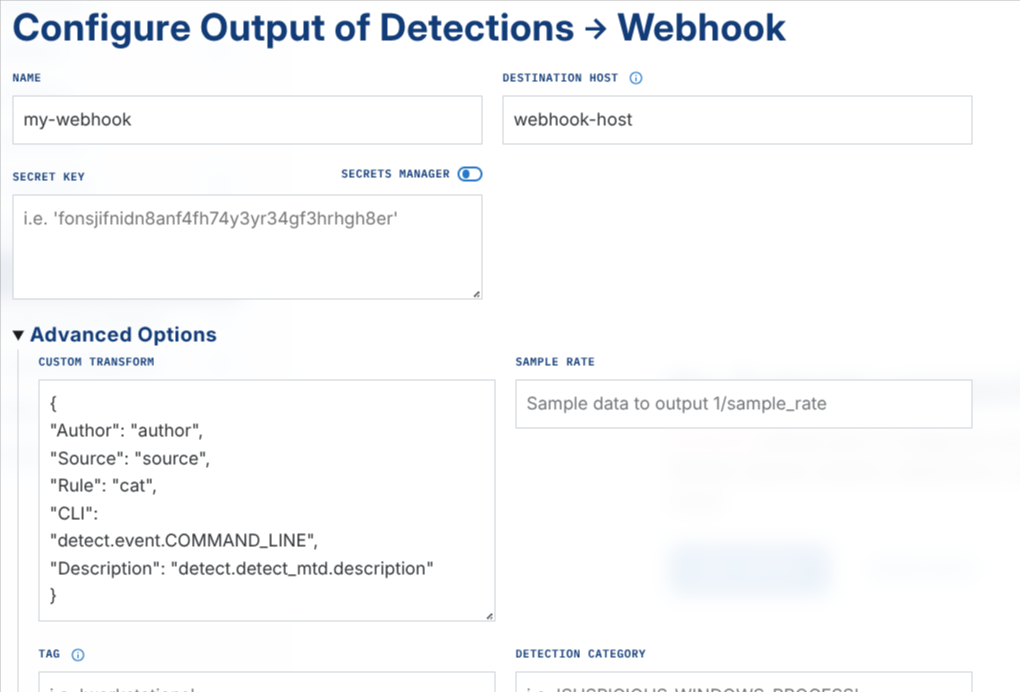
When passing events to an output, you have the option to transform the original event in multiple ways. When creating an output, Custom Transforms are applied in the CUSTOM TRANSFORM area of the screenshot below. In this example we are transforming a detection event to pass via a custom webhook to a web application.
Examples
Extracting Fields from Telemetry
Let's say you have the following 4625 failed logon and you want to send similar events to an output, but only certain fields.
{
  "event": {
    "EVENT": {
      "EventData": {
        "AuthenticationPackageName": "NTLM",
        "FailureReason": "%%2313",
        "IpAddress": "142.99.21.14",
        # <extra fields removed>
        "TargetUserName": "administrator",
        "WorkstationName": "D-483"
      },
      "System": {
        "Channel": "Security",
        "Computer": "demo-win-2016",
        # <extra fields removed>
        "EventID": "4625",
        "EventRecordID": "22690646",
        # <extra fields removed>
        "TimeCreated": {
          "SystemTime": "2024-01-23T17:30:07.345840000Z"
        },
        "Version": "0",
        "_event_id": "4625"
      }
    }
  },
  "routing": {
    # <extra fields removed>
    "event_type": "WEL",
    "hostname": "win-2016.corp.internal",
     # <extra fields removed>
    "tags": [
      "windows"
    ],
    "this": "8873fb9fcb26e2c0d4299ce765aff77d"
  },
  "ts": "2024-01-23 17:29:33"
}
The following Output Transform would extract only the IpAddress, TargetUserName, EventID, and SystemTime the event was created. Notice, the newly mapped field names can be whatever you want.
{
    "Source IP": "event.EVENT.EventData.IpAddress",
    "Username": "event.EVENT.EventData.TargetUserName",
    "Event ID": "event.EVENT.System.EventID",
    "Happened at": "event.EVENT.System.TimeCreated.SystemTime"
}
The following example outputs text and specified fields using Template Strings.
{
  "text": "Failed logon by {{ .event.EVENT.EventData.TargetUserName }} on {{ .routing.hostname }}"
}
The above example would generate the following output using the provided sample WEL.
Output as String / Passthrough
The custom_transform in outputs can also be used to output pure text (non-JSON) from LimaCharlie. This is useful if, for example, you are ingesting syslog data, and want to forward this syslog data as-is to something else.
This is accomplished by specifying a Template String in the custom_transform field instead of a Transform. In those cases, when LimaCharlie determines the custom_transform string is not a valid Transform, it will interpret it as a Template String like:
or
Custom Modifiers
Beyond the built-in modifiers for gjson (as seen in their playground, LimaCharlie also implements several new modifiers:
parsejson: this modifier takes no arguments, it takes in as input a string that represents a JSON object and outputs the decoded JSON object.extract: this modifier takes a single argument,rewhich is a regular expression that uses "named capture groups" (as defined in the re2 documentation). The group names become the keys of the output JSON object with the matching values.parsetime: this modifier takes two arguments,fromandto. It converts an input string from a given time format (using the Gotimelibrary format constants) and outputs the resulting time in thetoformat. Beyond those time constants, LimaCharlie also supports afromformat of:epoch_s: a second based epoch timestampepoch_ms: a millisecond based epoch timestamp
For example: The transform:
{
  "new_ts": "ts|@parsetime:{\"from\":\"2006-01-02 15:04:05\", \"to\":\"Mon, 02 Jan 2006 15:04:05 MST\"}",
  "user": "origin|@extract:{\"re\":\".*@(?P<domain>.+)\"}",
  "ctx": "event.EVENT.exec_context|@parsejson"
}
applied to:
{
  "ts": "2023-05-10 22:35:48",
  "origin": "someuser@gmail.com",
  "event": {
    "EVENT": {
      "exec_context": "{\"some\": \"embeded value\"}"
    }
  }
}
would result in: