macOS Agent Installation - MDM Configuration Profiles
This document provides details of the Mobile Device Management (MDM) Configuration Profile that can be used to deploy the LimaCharlie agent to your enterprise fleet on macOS (versions 10.15 and newer).
Affected Dialogs
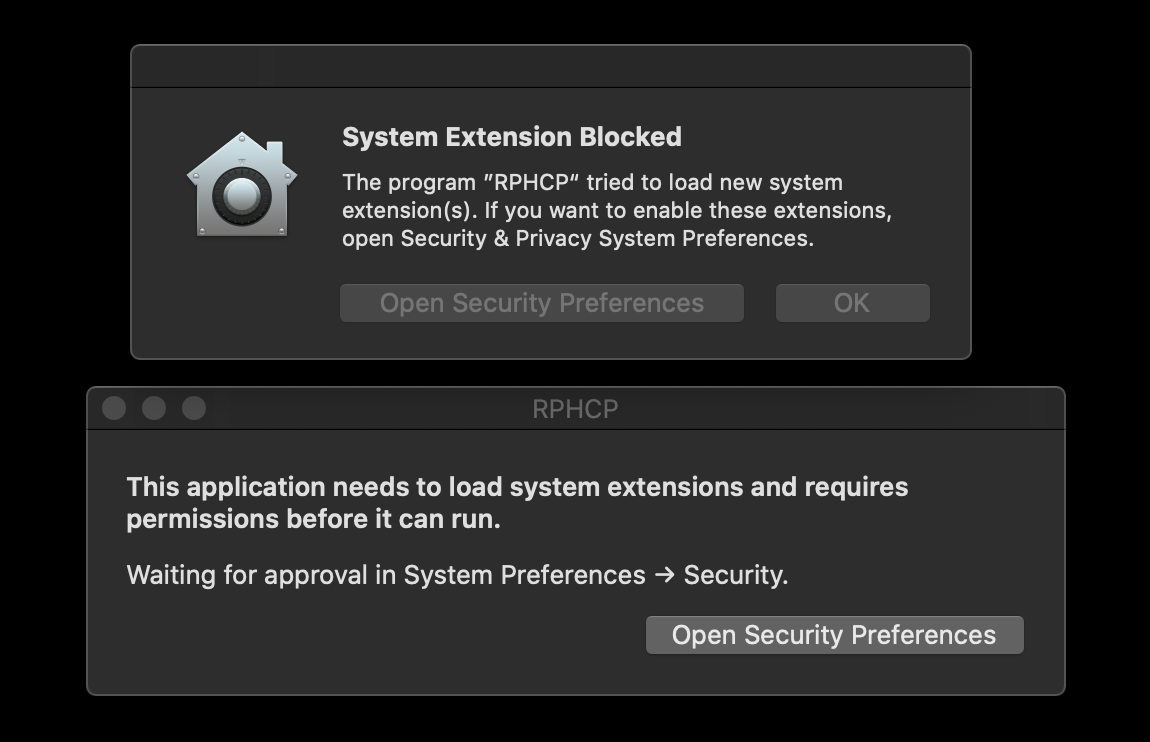
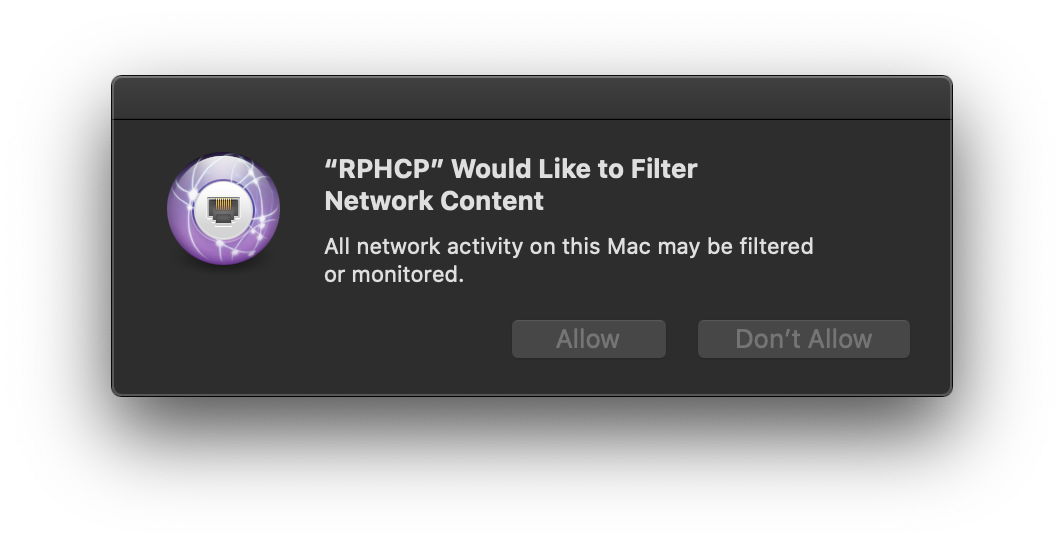
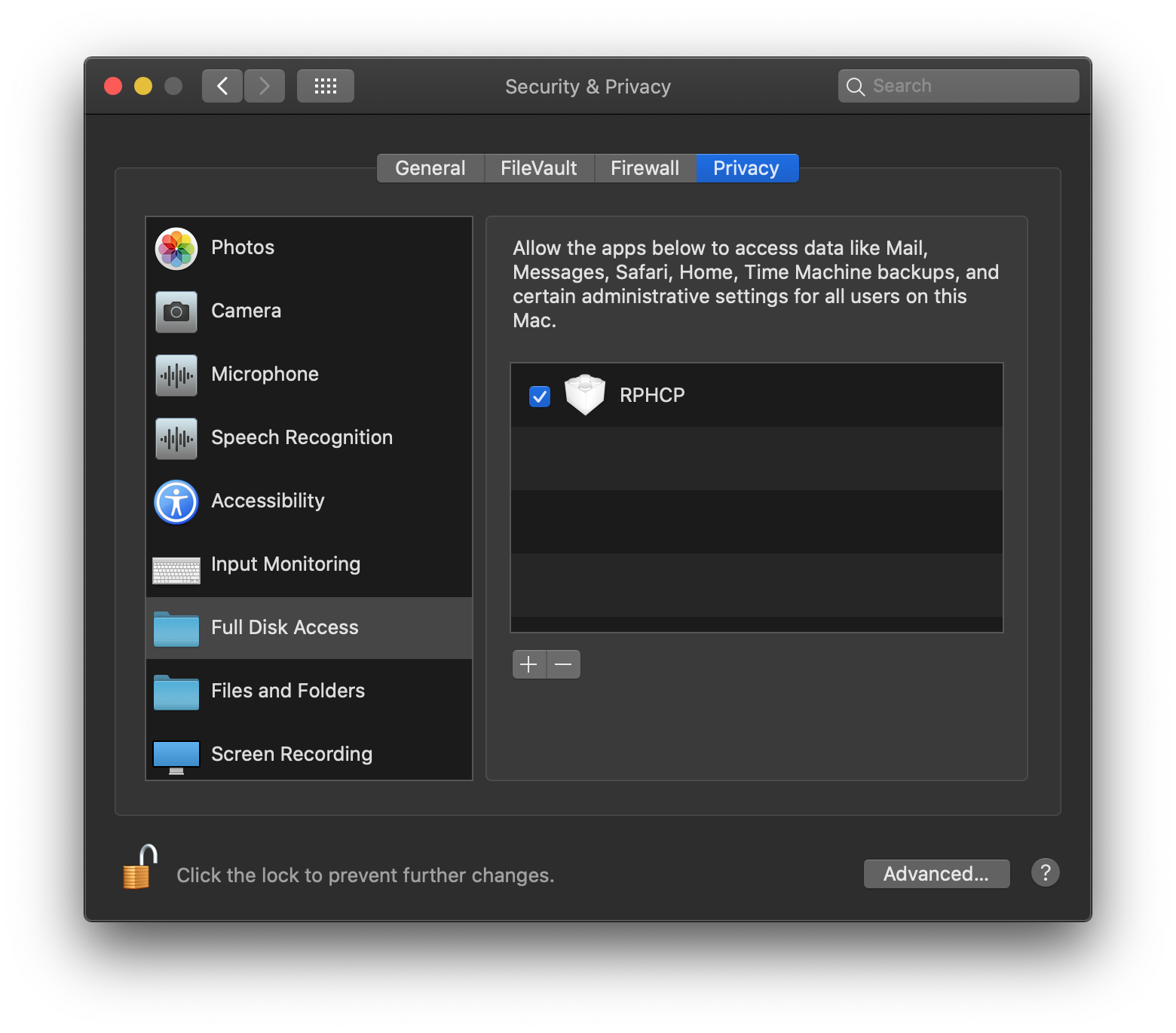
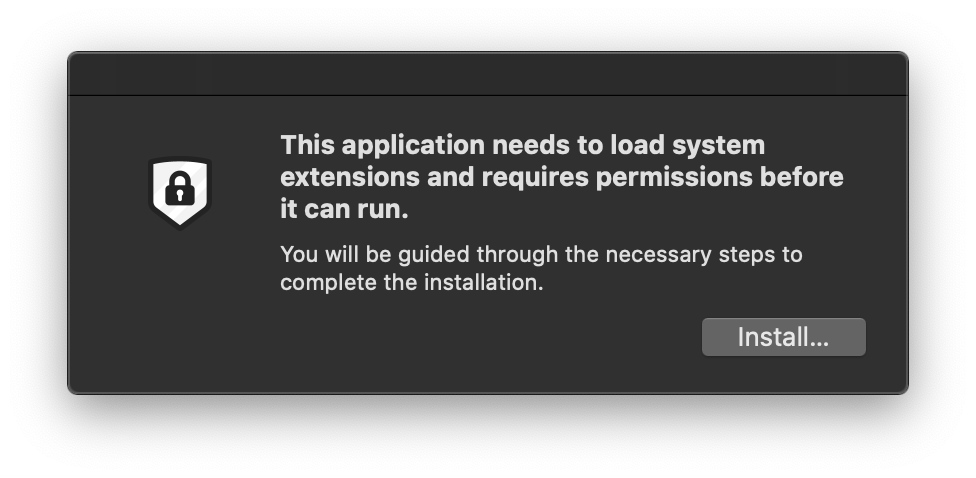
Once the configuration profile is deployed using an approved MDM server, users will not need to provide approval to complete the agent installation. In particular, the following three system approval dialogs will no longer be presented:
System Extension
Network Filter
Full Disk Access
Application Installation
Configuration Profile Details
We have provided a sample configuration profile for reference: 
Download the sample configuration profile (a zip archive containing rphcp.mobileconfig)
This profile includes the following payloads:
- System Extension - allowlists the agent's Endpoint Security and Network extension,
com.refractionpoint.rphcp.extension, under team identifierN7N82884NH. - Full Disk Access - a Privacy Preferences Policy Control (TCC) grant of
SystemPolicyAllFilesto the app, the system extension, and the/usr/local/bin/rphcpdaemon binary. - Network Content Filter - pre-approves the agent's socket and packet filters.
- Managed Login Items - marks the agent's launchd daemon,
com.refractionpoint.rphcp, as managed. Since macOS 13 that daemon appears under System Settings > General > Login Items with an "Allow in the Background" toggle that any user of the machine can switch off; a matchingcom.apple.servicemanagementrule greys the toggle out and pins it on. The profile carries two overlapping rules: aLabelPrefixrule for the daemon the installer creates, and aTeamIdentifierrule for any other background item RPHCP.app registers.
On macOS 15 and newer, the System Extension payload additionally sets NonRemovableFromUISystemExtensions, which blocks removal of the extension from System Settings > General > Login Items & Extensions and from the Finder. Earlier macOS releases ignore the key.
The identifiers, code requirements, and daemon label in this profile are verified against every signed agent release, so a deployed copy stays in step with what the installer ships.
Silent Installation Preference
In addition to the MDM profile, you will also want to place the following preference file in the /Library/Preferences folder on the endpoint prior to installation. With this preference file in place the application will provide for a silent installation.
The required preference file can be downloaded here: 
Installation Scripts
We have made a sample installation and uninstallation script available. You can use these with MDM providers to mass install/remove LimaCharlie. Note that the installation script should be edited prior to use as it requires your unique Installation Key to be entered.
These scripts will determine the machine architecture (Intel or Apple Silicon), download the appropriate installer, and then perform the installation or uninstallation. They also will automatically add (or remove, for uninstallations) the Silent Installation Preference File.
Example Jamf Pro Setup
While any Apple / user approved MDM provider may be used, we have provided specific instructions for Jamf Pro as a matter of convenience.
- Log into Jamf Pro and go to Computers -> Configuration Profiles
- Add a new profile
- In the General section choose a name for the profile and set Level to "Computer Level"

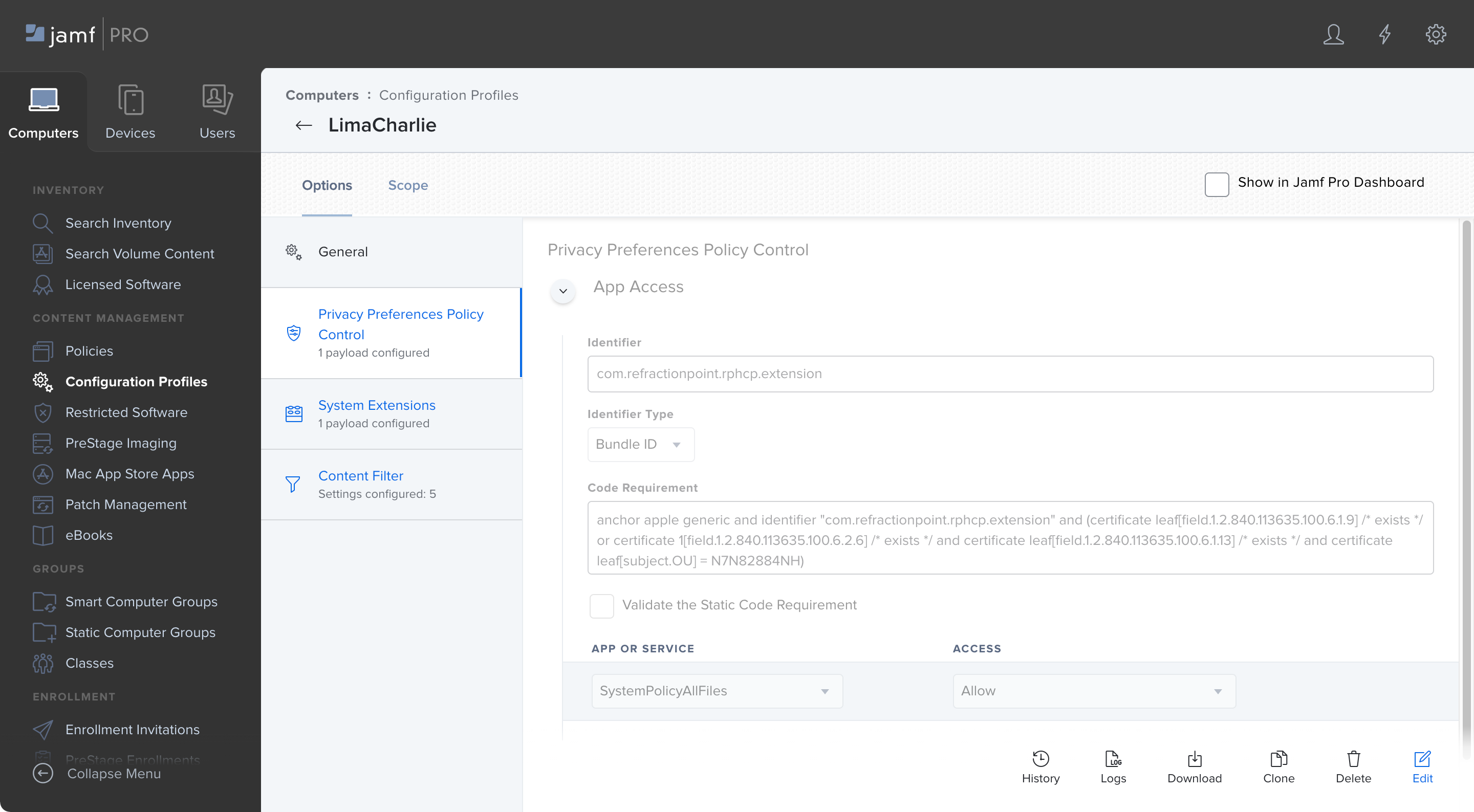
- Add a Privacy Preferences Policy Control configuration and set the parameters as follows:
Identifier: com.refractionpoint.rphcp.extension
Identifier Type: Bundle ID
Code Requirement: anchor apple generic and identifier "com.refractionpoint.rphcp.extension" and (certificate leaf[field.1.2.840.113635.100.6.1.9] /* exists */ or certificate 1[field.1.2.840.113635.100.6.2.6] /* exists */ and certificate leaf[field.1.2.840.113635.100.6.1.13] /* exists */ and certificate leaf[subject.OU] = N7N82884NH)
App or Service: SystemPolicyAllFiles
Access: Allow
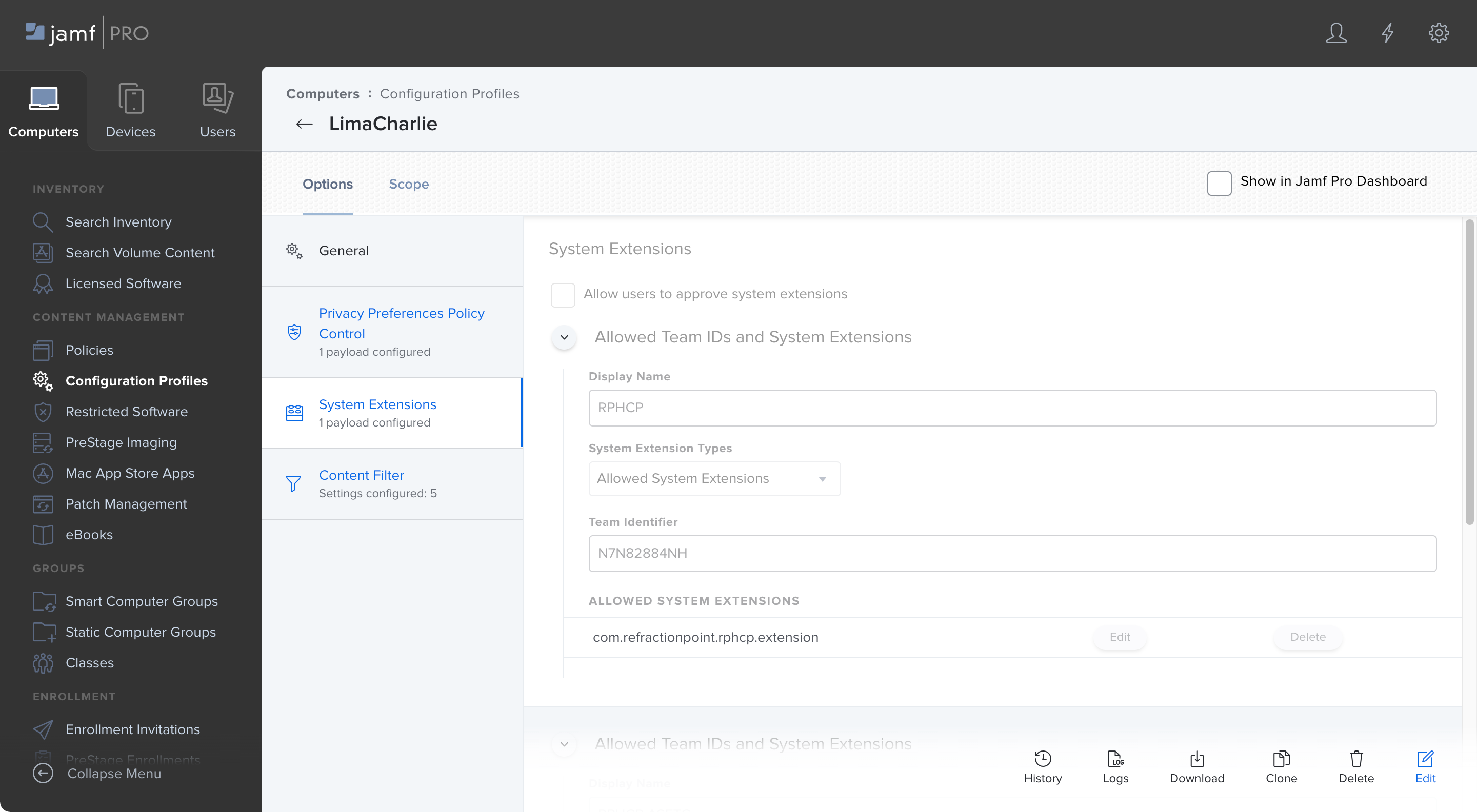
- Add a System Extensions configuration and set the parameters as follows:
Enter your desired display name
System Extension Types: Allowed System Extensions
Team Identifier: N7N82884NH
Allowed System Extensions: com.refractionpoint.rphcp.extension
- Add a Content Filter configuration and set the parameters as follows:
Enter your desired filter name
Identifier: com.refractionpoint.rphcp.client
Filter Order: Firewall
Add a Socket Filter with the following details: Socket Filter Bundle Identifier: com.refractionpoint.rphcp.client
Socket Filter Designated Requirement anchor apple generic and identifier "com.refractionpoint.rphcp.client" and (certificate leaf[field.1.2.840.113635.100.6.1.9] /* exists */ or certificate 1[field.1.2.840.113635.100.6.2.6] /* exists */ and certificate leaf[field.1.2.840.113635.100.6.1.13] /* exists */ and certificate leaf[subject.OU] = N7N82884NH)
Add a Network Filter with the following details:
Network Filter Bundle Identifier: com.refractionpoint.rphcp.client
Network Filter Designated Requirement: anchor apple generic and identifier "com.refractionpoint.rphcp.client" and (certificate leaf[field.1.2.840.113635.100.6.1.9] /* exists */ or certificate 1[field.1.2.840.113635.100.6.2.6] /* exists */ and certificate leaf[field.1.2.840.113635.100.6.1.13] /* exists */ and certificate leaf[subject.OU] = N7N82884NH)
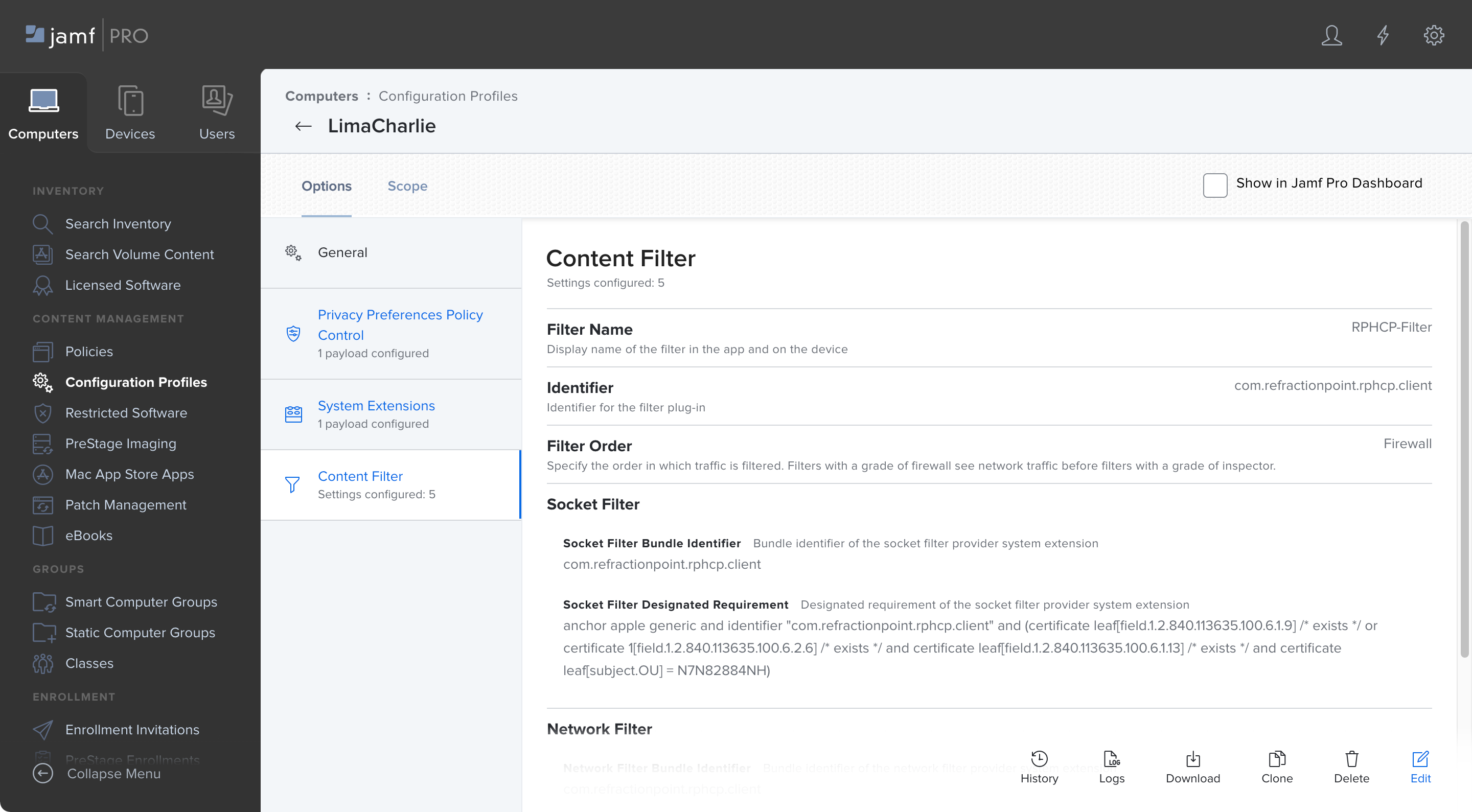
- Deploy the configuration profile to your devices.
Note
These steps build the three permission payloads by hand, and leave out the Managed Login Items payload described above - the one that keeps a user from switching the agent off in System Settings. To get every payload, upload the sample profile above to Jamf Pro as a custom profile instead of rebuilding it in the UI.