Chrome Agent Installation
LimaCharlie's Chrome Sensor is built as a browser extension and provides visibility for activity performed within the browser. This sensor is particularly useful for gaining affordable network visibility in organizations that make heavy use of ChromeOS.
It is delivered as the LimaCharlie Sensor extension available in the Chrome Web Store.
Installation Instructions
The Chrome sensor is available in the Chrome Web Store.
- In the LimaCharlie web app (app.limacharlie.io), go to the "Installation Keys" section, select your Installation Key and click the "Chrome Key" copy icon to copy the key to your clipboard.
- Install the sensor from: https://downloads.limacharlie.io/sensor/chrome
-
A new tab will open where you can add your installation key from before. If you close it by mistake, you can re-open it by:
-
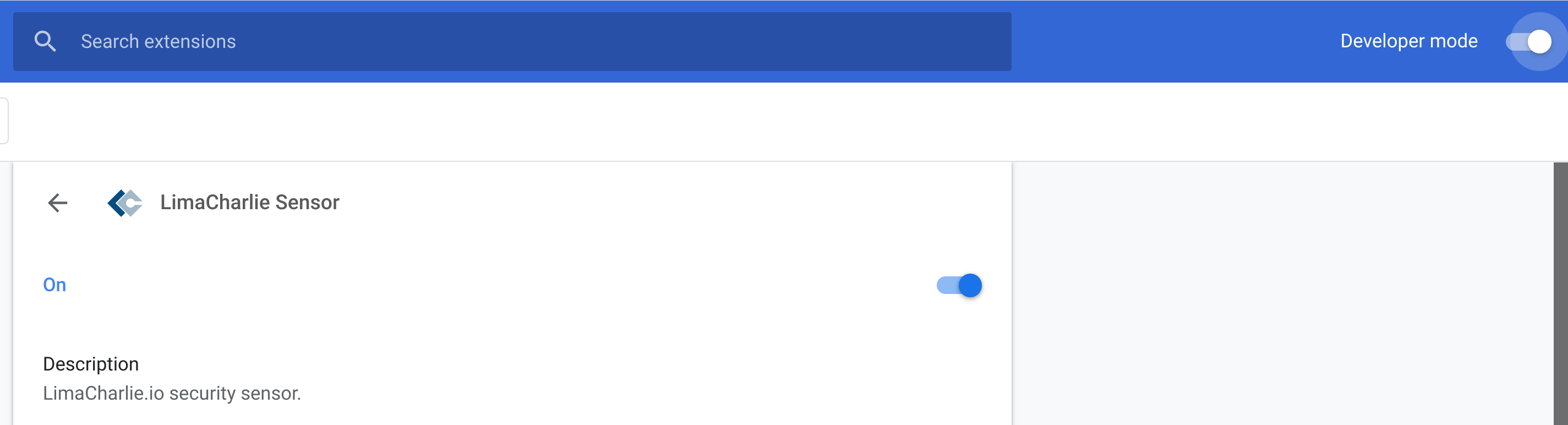
From the Extensions page at chrome://extensions/ click on the "Details" button of the LimaCharlie Sensor extension.
- Go to the "Extension options" section, and enter your installation key from the previous step. Click save.
The installation key can also be pre-configured through the Managed Storage feature (key named installation_key) if you are using a managed Chrome deployment.
Chrome Sensors in Entity Pivot
A Chrome sensor's hostname is the account the browser profile is signed in to, followed by @ and an installation token. In Entities (requires Cloud Security), a signed-in profile attaches to that person's User as a telemetry source rather than appearing as a Host. A profile with no signed-in account stays a Host. The account is the one the browser was signed in to when the extension started; it is not proof of who produced every event.
Troubleshooting the Chrome Sensor
If the Chrome extension is giving connectivity issues, the following may help.
First, try uninstalling/re-installing the extension.
If the extension continues to fail to connect, please provide the LimaCharlie support team with the following details:
- Open a new browser tab
- Go to
chrome://extensions/ - Ensure "Developer Mode" is enabled (see toggle in the top right)
- Click the
background.htmllink in the LimaCharlie Sensor entry.

- In the window that opens, click Console and provide us with a screenshot of what appears for analysis.
Please also include your Organization ID, which can be found within the LimaCharlie web interface in the REST API section under OID.