Sublime Security
Sublime Security is a comprehensive email security platform that allows users to create custom detections, gain visibility and control, and focus on prevention of malicious emails.
Ingesting Audit Logs
Audit logs from Sublime can be ingested cloud-to-cloud via the API.
The adapter polls the audit log API every 30 seconds. It ships audit events created after the adapter starts; the existing audit history is not backfilled. The adapter does not persist its position, so audit events created while it is stopped or restarting are not shipped either.
Adapter-specific Options
Adapter Type: sublime
api_key: your Sublime Security API key.base_url(optional): the base URL of your Sublime Security API. Defaults tohttps://platform.sublime.security(North America). If your Sublime Security instance is hosted in a different region, or is self-hosted, set this to the API base URL of that instance.
Use sublime as the client_options.platform. LimaCharlie then takes the event type from each audit event's type field and the event time from its created_at field, so no mapping is needed.
CLI Deployment
Adapter downloads are available on the deployment page.
chmod +x /path/to/lc_adapter

/path/to/lc_adapter sublime client_options.identity.installation_key=$INSTALLATION_KEY \
client_options.identity.oid=$OID \
client_options.platform=sublime \
client_options.sensor_seed_key=$SENSOR_NAME \
client_options.hostname=$SENSOR_NAME \
api_key=$API_KEY
Add base_url=$BASE_URL if your instance is not on the default North America API.
Infrastructure as Code Deployment
# For cloud sensor deployment, store credentials as hive secrets:

#   api_key: "hive://secret/sublime-api-key"

sensor_type: "sublime"
sublime:
  api_key: "hive://secret/sublime-api-key"
  # base_url: "https://platform.sublime.security"  # optional, defaults to North America
  client_options:
    identity:
      oid: "xxxxxxxx-xxxx-xxxx-xxxx-xxxxxxxxxxxx"
      installation_key: "YOUR_LC_INSTALLATION_KEY_SUBLIME"
    hostname: "sublime-security-adapter"
    platform: "sublime"
    sensor_seed_key: "sublime-audit-sensor"
Troubleshooting
- The adapter identifies itself to LimaCharlie by its
sensor_seed_keyand installation key. If you run the same Sublime Security integration both as a cloud sensor and as a binary adapter with a differentsensor_seed_key, they show up as two separate sensors, and each sensor's timeline only shows the events that adapter shipped. - Deleting a sensor does not stop its adapter. A cloud sensor that is still configured reconnects and re-enrolls; remove or disable the cloud sensor configuration to stop it.
- If you use the
jsonplatform instead ofsublime, setmapping.event_type_path: "type"andmapping.event_time_path: "created_at"so events get the audit event type and the time the audited action happened.
API Doc
See the official documentation.
Ingesting Alerts
Sublime events can be ingested in LimaCharlie via a json Webhook Adapter configuration.
Adapter Deployment
Sublime Security logs are ingested via a cloud-to-cloud webhook Adapter configured to receive JSON events. The steps of creating this Adapter and enabling the input include:
- Creating the Webhook Adapter via the LimaCharlie CLI
- Discovering the URL created for the Webhook Adapter.
- Providing the completed URL to Sublime Security for webhook events.
1. Creating the LimaCharlie Webhook Adapter
These steps are adapted from the generic Webhook Adapter creation guide.
Creating a Webhook Adapter requires a set of parameters, including organization ID, Installation Key, platform, and mapping details, among other parameters. The following configuration can be modified to easily configure a Webhook Adapter for ingesting Sublime Security events:
{
    "sensor_type": "webhook",
    "webhook": {
       "secret": "sublime-security",
        "client_options": {
            "hostname": "sublime-security",
            "identity": {
                "oid": "<your_oid>",
                "installation_key": "<your_installation_key>"
            },
            "platform": "json",
            "sensor_seed_key": "sublime-super-secret-key",
            "mapping" : {
                "event_type_path" : "data/flagged_rules/name",
                "event_time_path" : "created_at"
            }
        }
    }
}
Note that in the mapping above, we make the following changes:
event_type_pathis mapped to the rule name from the Sublime alertevent_time_pathis mapped to thecreated_atfield from the Sublime alert
2. Building the Adapter URL
After creating the webhook, you'll need to retrieve the webhook URL from the Get Org URLs API call. You'll need the following information to complete the Webhook URL:
- Organization ID
- Webhook name (from the config)
- Secret (from the config)
Let's assume the returned domain looks like 9157798c50af372c.hook.limacharlie.io, the format of the URL would be:
https://9157798c50af372c.hook.limacharlie.io/OID/HOOKNAME/SECRET
Note that the secret value can be provided in the webhook URL or as an HTTP header named lc-secret.
3. Configuring the Sublime webhook Action
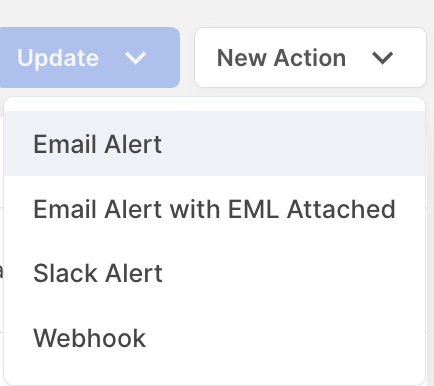
Within the Sublime Security console, navigate to Manage > Actions. From here, you can select New Action > Webhook.
Within the Configure webhook menu, provide a name and the Adapter URL constructed in Step 2 above.
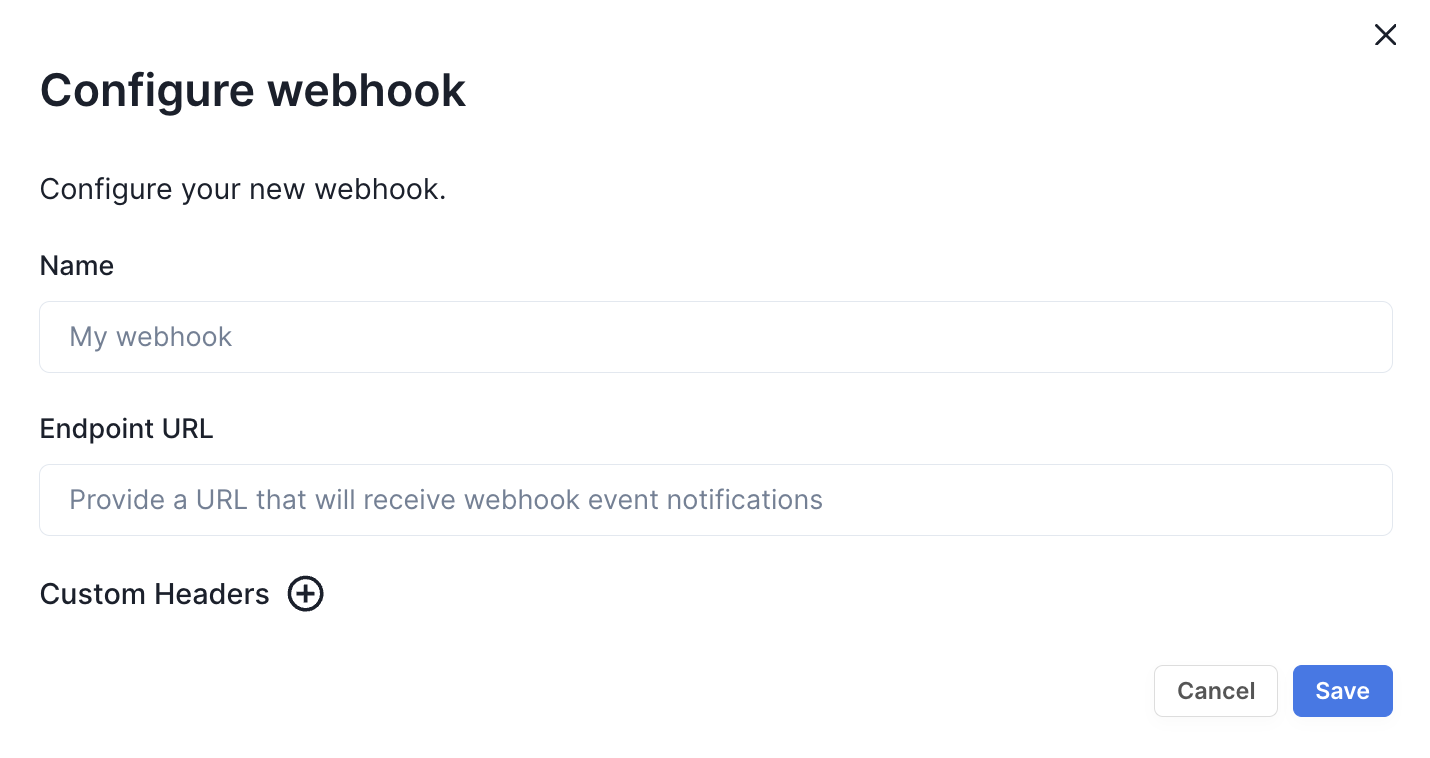
As mentioned in Step 2, you can configure the HTTP header lc-secret, if so desired.
Upon configuration of the webhook within Sublime Security, alerts can be configured to be sent to the LimaCharlie platform. To test the Webhook, select Trigger Custom Action from any Flagged message, and send to the LimaCharlie webhook.