Velociraptor to BigQuery
Overview
Our BigQuery output allows you to send Velociraptor hunt results to a BigQuery table allowing SQL-like queries against the hunt data. This is very similar to using Velociraptor notebooks, allowing you to perform hunt analysis at scale against massive datasets. For guidance on using LimaCharlie to execute Velociraptor hunts, see Velociraptor Extension.
Imagine you wanted to obtain running processes from 10s, 100s, or 1000s of systems using Velociraptor. You could easily issue a Windows.System.Pslist hunt across these systems, and let LimaCharlie push Velociraptor to the endpoints and collect the results. The issue is, if you want to run queries against all of the data returned by the hunts, you'll need a database-like tool to do that which is where BigQuery comes in.
BigQuery dataset containing Velociraptor hunt results:
Prerequisites
-
A Google Cloud project with billing enabled. LimaCharlie writes to BigQuery using streaming inserts, which are not available in the free tier (BigQuery sandbox). If billing is not enabled on the project, the output will fail with an error like:
-
The ability to create service account keys. Some organizations enforce the
iam.disableServiceAccountKeyCreationorganization policy, which blocks the creation of service account JSON keys. If key creation fails with a policy error, an administrator will need to grant an exception for the project (Organization Policies > "Disable service account key creation"), or you can use a project outside of that policy.
Steps to Accomplish
-
You will need to create a service account within your Google Cloud project
- Navigate to your project
- Navigate to IAM
- Navigate to Service Accounts > Create Service Account
-
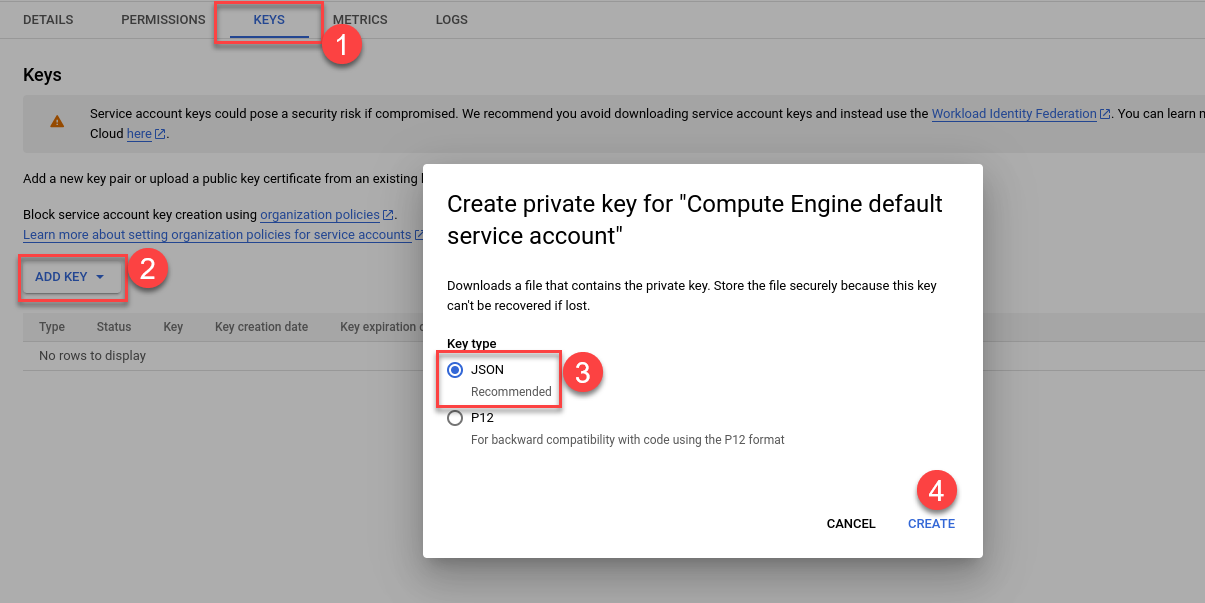
Click on newly created Service Account and create a new key
-
This will provide you with the JSON format secret key you will later setup in your LimaCharlie output
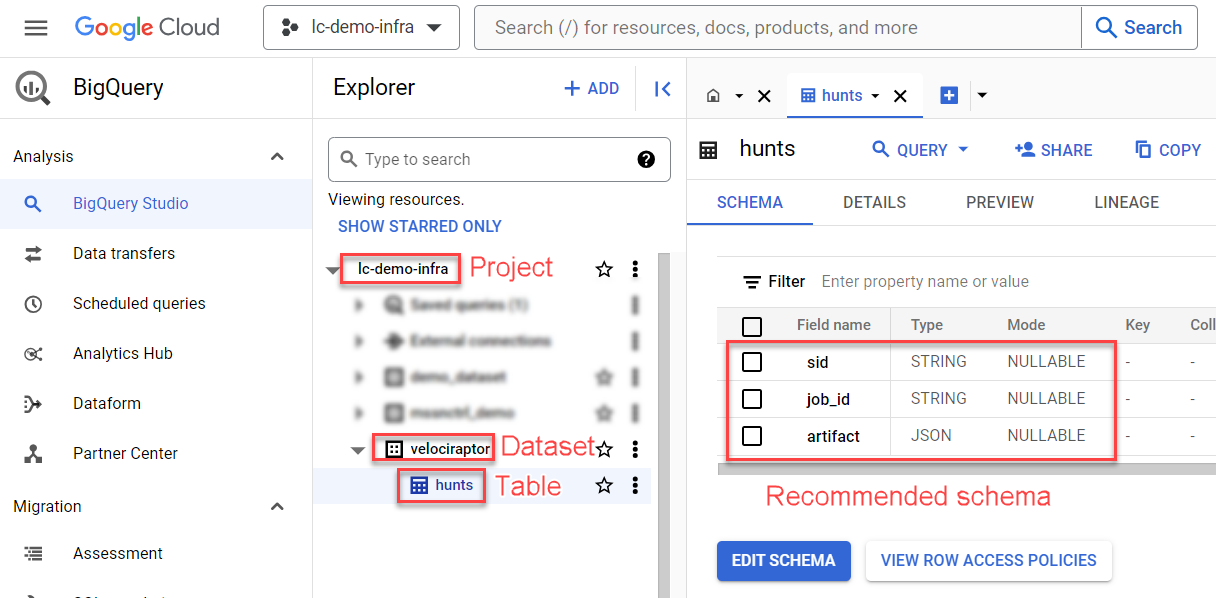
- In BigQuery, create a Dataset, Table, & Schema similar to the screenshot below
-
- Grant the service account the BigQuery Data Editor role, either on the project or scoped to the dataset you just created
-
The output needs the
bigquery.tables.getpermission (to read the table schema) andbigquery.tables.updateData(to stream rows in). Roles like BigQuery Data Viewer or BigQuery Job User are not sufficient — without BigQuery Data Editor the output will fail with an error likePermission bigquery.tables.get denied on table <project>:<dataset>.<table> (or it may not exist) - Now we're ready to create our LimaCharlie tailored output
-
In the side navigation menu, click "Outputs" then add a new output
- Output stream: Tailored
-
Destination: Google Cloud BigQuery
-
Name:
bigquery-tailored-
You can change this, but it affects a subsequent step so take note of the output name 2. Dataset: whatever you named BQ your dataset above 3. Table: whatever you named your BQ table above
-
The output streams rows directly into this table, so the table's columns (defined when you created it above, e.g.
sid:STRING, job_id:STRING, artifact:JSON) must match the fields produced by the Custom Transform below — rows with fields that don't exist as columns are rejected by BigQuery 4. Project: your GCP project ID (e.g.my-project-123456, not the display name — you can find it on the GCP console dashboard or in the resource picker) 5. Secret Key: provide the JSON secret key for your GCP service account 6. Advanced Options -
Custom Transform: paste in this JSON
-
Specific Event Types:
velociraptor_collection3.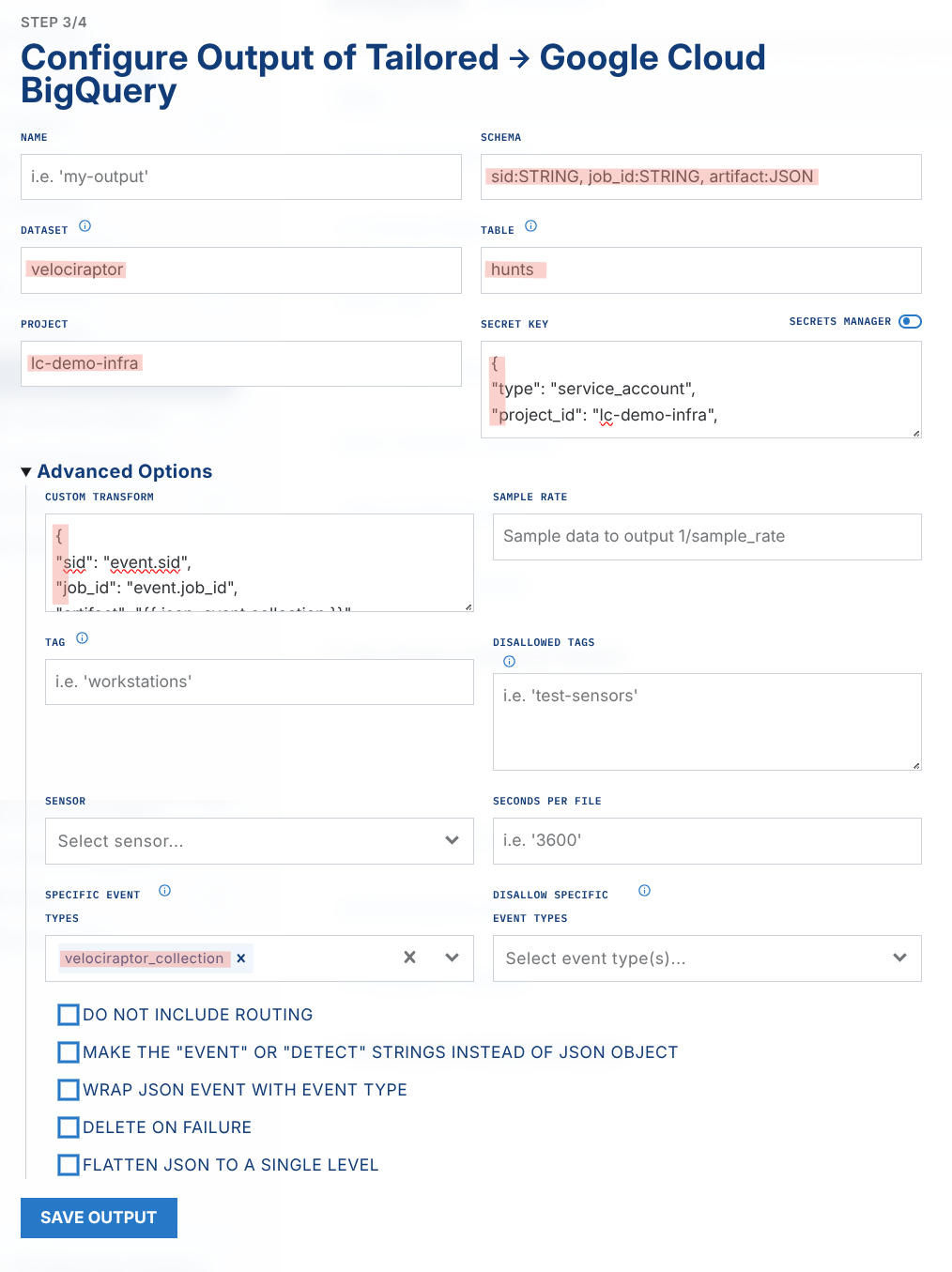
- We now need a rule that will watch for Velociraptor collections and send them to the new tailored output
-
-
-
Create a new D&R rule
-
Detection
-
Response
-
-
You are now ready to send Velociraptor hunts to BigQuery!
Including the Hostname
The velociraptor_collection event identifies the endpoint by its sensor ID (sid) only — it does not contain the hostname, and because the event is delivered through the extension's webhook adapter, the output's routing metadata identifies the adapter rather than the endpoint. To get the hostname alongside your hunt results, include the built-in Generic.Client.Info artifact in your collections; its BasicInformation source reports the endpoint's Hostname and Fqdn as part of the collection results.
For example, when starting a collection, use an artifact list like:
You can then surface the hostname as its own BigQuery column. First add the column to your table (fields sent by the output must exist as columns, or the rows will be rejected):
Then add a hostname field to the output's Custom Transform, extracted from the Generic.Client.Info results:
{
"sid": "event.sid",
"job_id": "event.job_id",
"hostname": "event.collection.Generic_Client_Info.BasicInformation.0.Hostname",
"artifact": "{{ json .event.collection }}"
}
Alternatively, leave the schema and transform as-is and extract the hostname at query time from the artifact JSON column:
SELECT
  sid,
  JSON_VALUE(artifact.Generic_Client_Info.BasicInformation[0].Hostname) as Hostname
FROM
  `lc-demo-infra.velociraptor.hunts`
BigQuery Tips
Query Examples
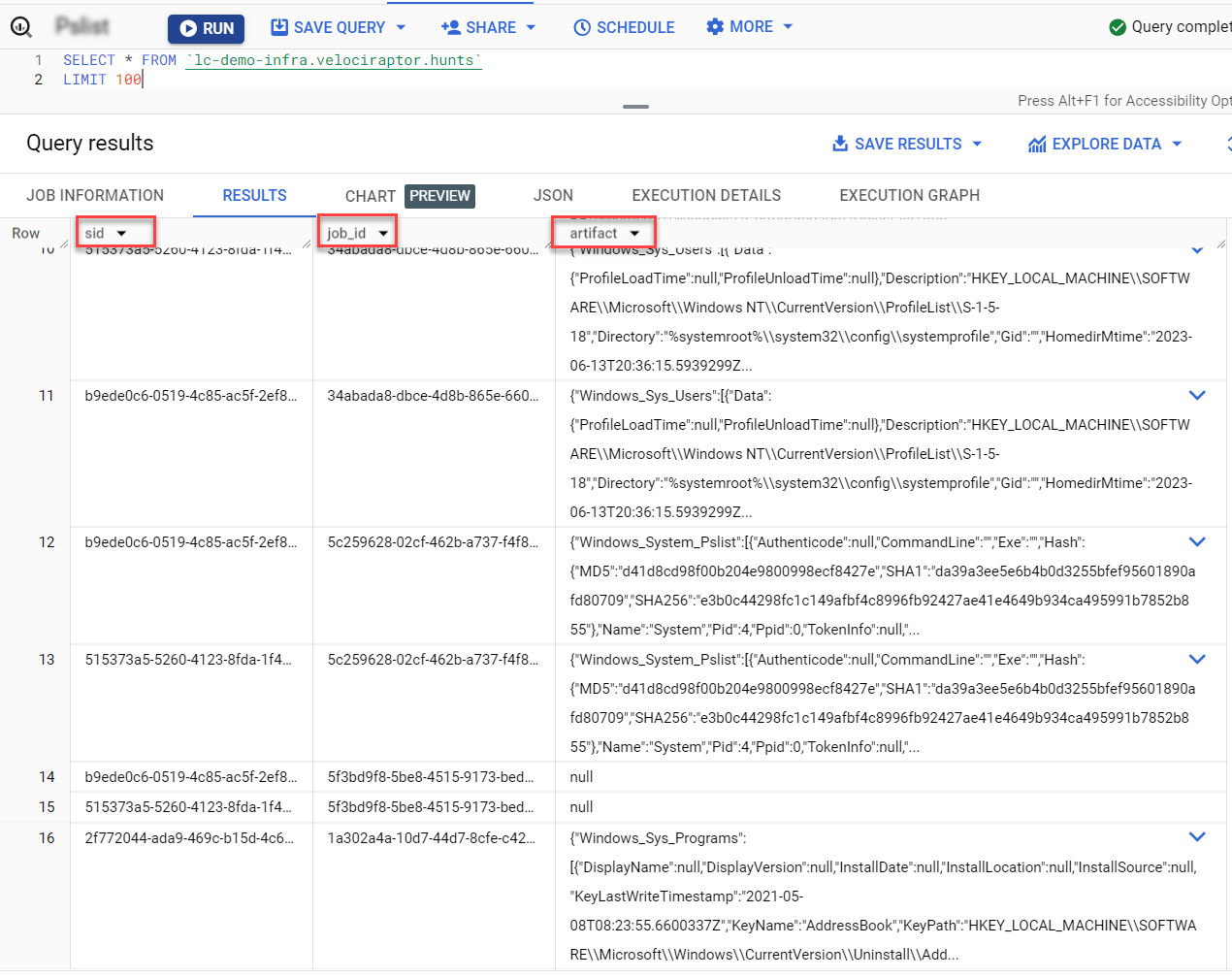
Once the data arrives in BigQuery, it will be in three simple columns: sid, job_id, and artifact. The artifact column contains the raw JSON of the hunt results from each sensor that returned results.
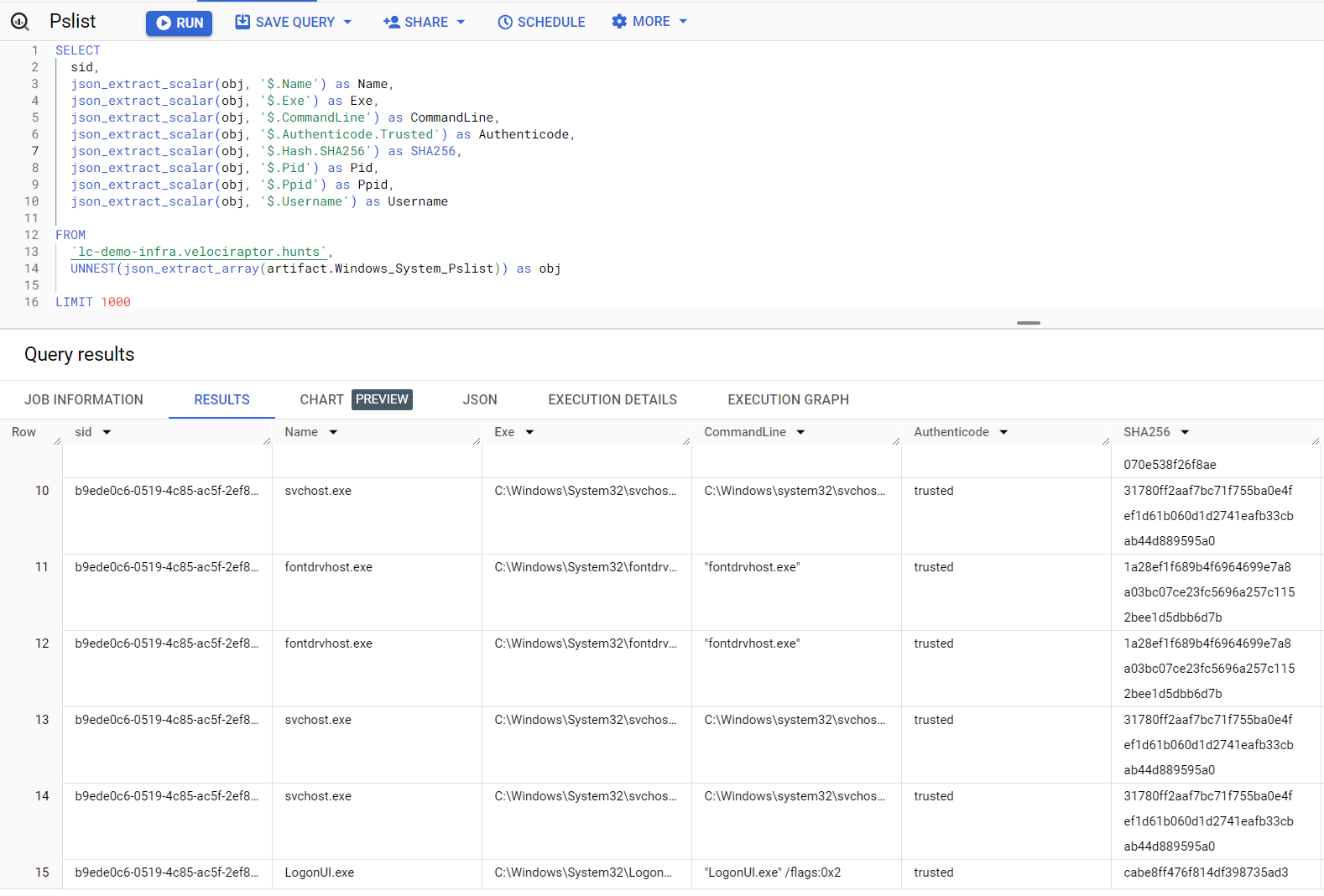
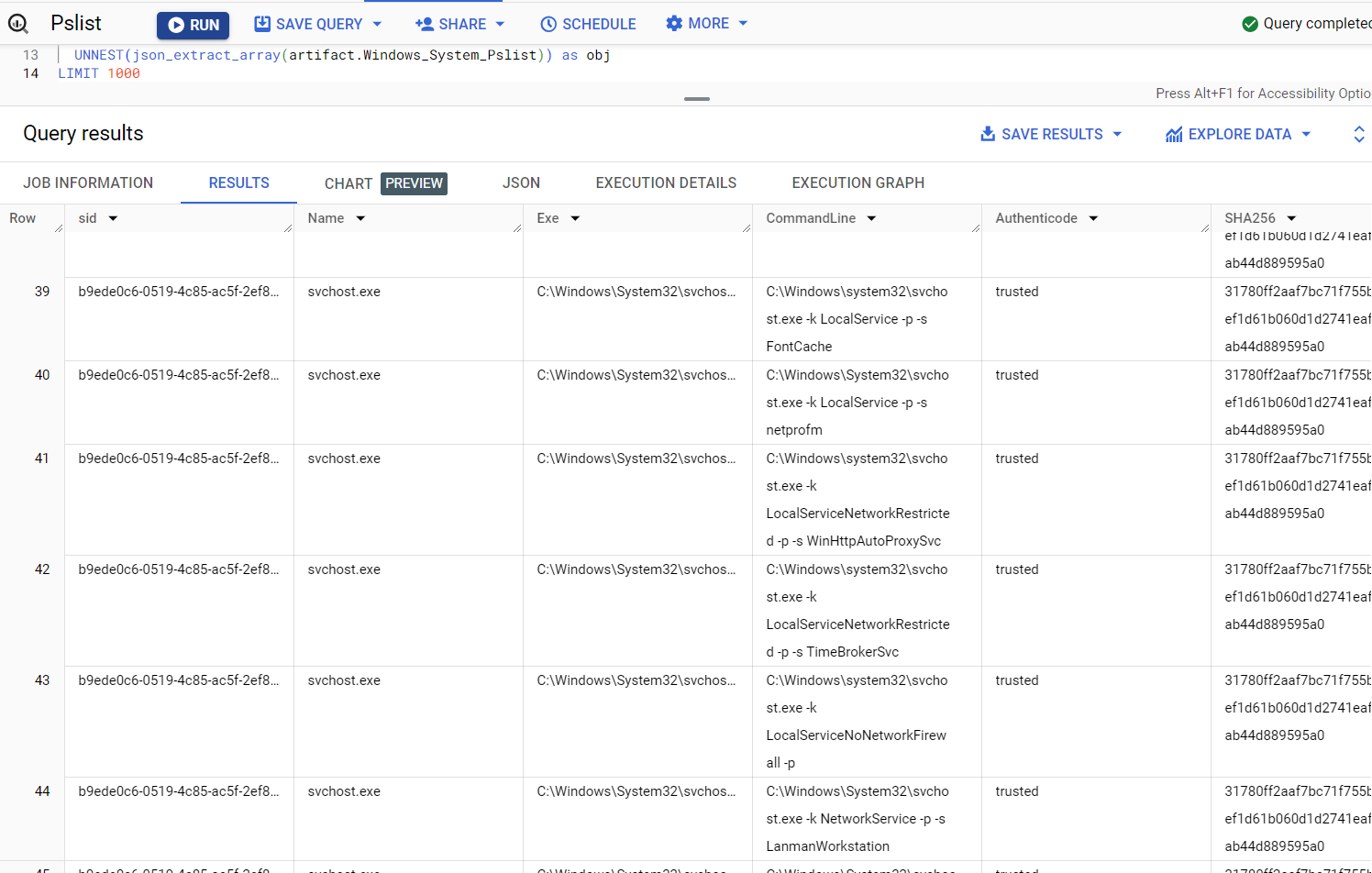
Let's say we wanted to split out all results of a Windows.System.Pslist hunt so that each process, from each system, is returned in its own row. Here is an example notebook to accomplish this:
SELECT
  sid,
  json_extract_scalar(obj, '$.Name') as Name,
  json_extract_scalar(obj, '$.Exe') as Exe,
  json_extract_scalar(obj, '$.CommandLine') as CommandLine,
  json_extract_scalar(obj, '$.Authenticode.Trusted') as Authenticode,
  json_extract_scalar(obj, '$.Hash.SHA256') as SHA256,
  json_extract_scalar(obj, '$.Pid') as Pid,
  json_extract_scalar(obj, '$.Ppid') as Ppid,
  json_extract_scalar(obj, '$.Username') as Username
FROM
  `lc-demo-infra.velociraptor.hunts`,
  UNNEST(json_extract_array(artifact.Windows_System_Pslist)) as obj
LIMIT 1000
Be sure to swap out lc-demo-infra.velociraptor.hunts for your own project.dataset.table names.
This results in the following view of our data
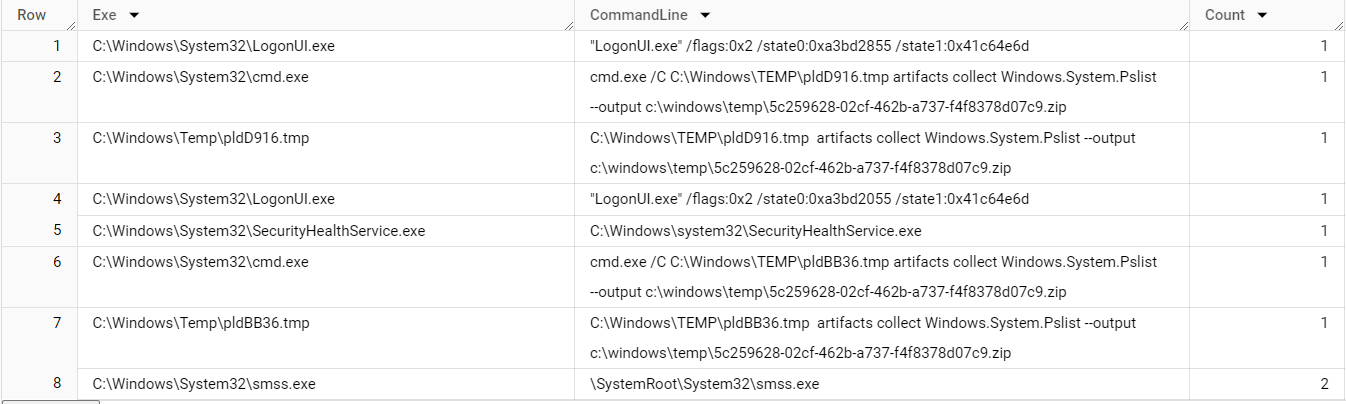
Suppose we wanted to perform some stacking analysis to identify the rarest combinations of Exe and CommandLine; the following query could help:
SELECT
  json_extract_scalar(obj, '$.Exe') as Exe,
  json_extract_scalar(obj, '$.CommandLine') as CommandLine,
  COUNT(*) as Count
FROM
  `lc-demo-infra.velociraptor.hunts`,
  UNNEST(json_extract_array(artifact.Windows_System_Pslist)) as obj
GROUP BY
  Exe,
  CommandLine
ORDER BY
  Count ASC
This results in the following view of our data
Now let's say you wanted to look for only processes that are Authenticode = untrusted, you would use a query such as this:
SELECT
  sid,
  json_extract_scalar(obj, '$.Name') as Name,
  json_extract_scalar(obj, '$.Exe') as Exe,
  json_extract_scalar(obj, '$.CommandLine') as CommandLine,
  json_extract_scalar(obj, '$.Authenticode.Trusted') as Authenticode,
  json_extract_scalar(obj, '$.Hash.SHA256') as SHA256,
  json_extract_scalar(obj, '$.Pid') as Pid,
  json_extract_scalar(obj, '$.Ppid') as Ppid,
  json_extract_scalar(obj, '$.Username') as Username
FROM
  `lc-demo-infra.velociraptor.hunts`,
  UNNEST(json_extract_array(artifact.Windows_System_Pslist)) as obj
WHERE
  json_extract_scalar(obj, '$.Authenticode.Trusted') = 'untrusted'
LIMIT 1000
WHERE Filters for Specific Conditions
Here are some brief examples of WHERE statements to perform specific filtering.
String presence
This example checks for the presence of a string mimikatz appearing anywhere within CommandLine
Compare integers
This example checks for the presence of an integer 0 in a numeric field GroupID
Parsing Nested JSON Objects
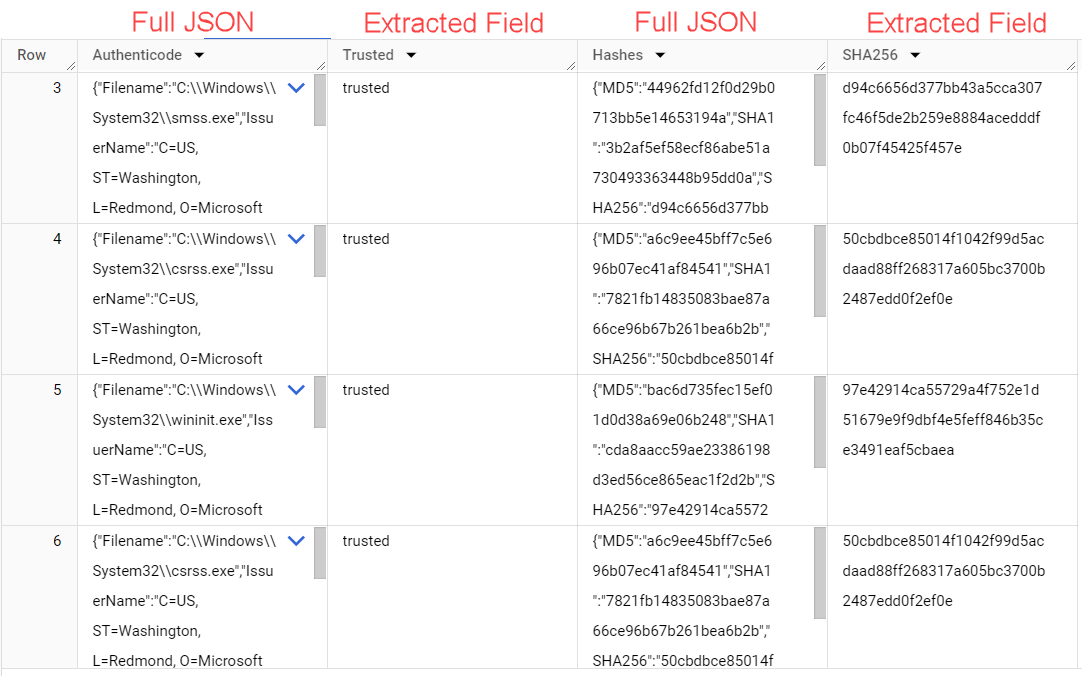
In the Windows.System.Pslist examples above, there are a few columns which contain nested JSON such as Authenticode and Hash. To expand these objects in their entirety in the corresponding column/row, we'd write a query like this:
SELECT
  json_extract(obj, '$.Authenticode') as Authenticode, # json_extract to unpack nested json
  json_extract_scalar(obj, '$.Authenticode.Trusted') as Trusted,
  json_extract(obj, '$.Hash') as Hashes, # json_extract to unpack nested json
  json_extract_scalar(obj, '$.Hash.SHA256') as SHA256, # extract a specific field from the nested json
FROM
  `lc-demo-infra.velociraptor.hunts`,
  UNNEST(json_extract_array(artifact.Windows_System_Pslist)) as obj
LIMIT 1000
See the output of this query below: